Rules tester
The Rules Tester lets you simulate the mail flow and verify how your configured rules behave - without sending any real emails. Provide a sample message with a sender, recipients, subject, and other attributes, and the application will process it through your rules exactly as it would during live operation. The results show which rules matched, which conditions were evaluated, and what actions would be applied.
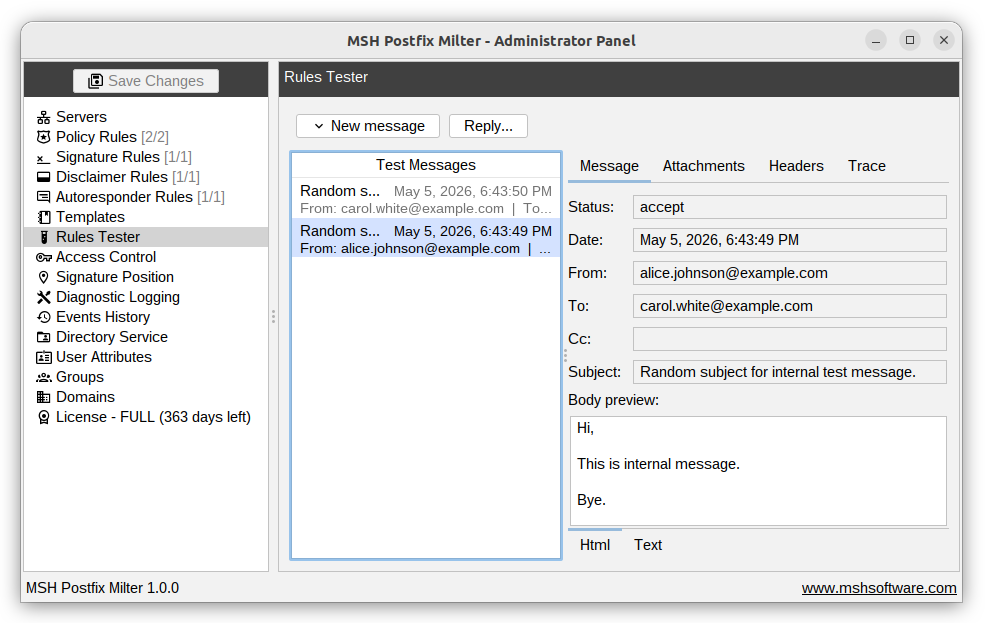
Test message compose
New message opens the dialog with a random incoming, internal or outgoing message, or an empty one with Custom.... Reply... composes a reply to the selected test message: an Html reply with the original in a block quote, or, to a message written as Text, a Text reply with the original quoted line by line. The dialog is laid out in tabs. Once the message is ready, click Send to run it through the rules and see the results.
Message
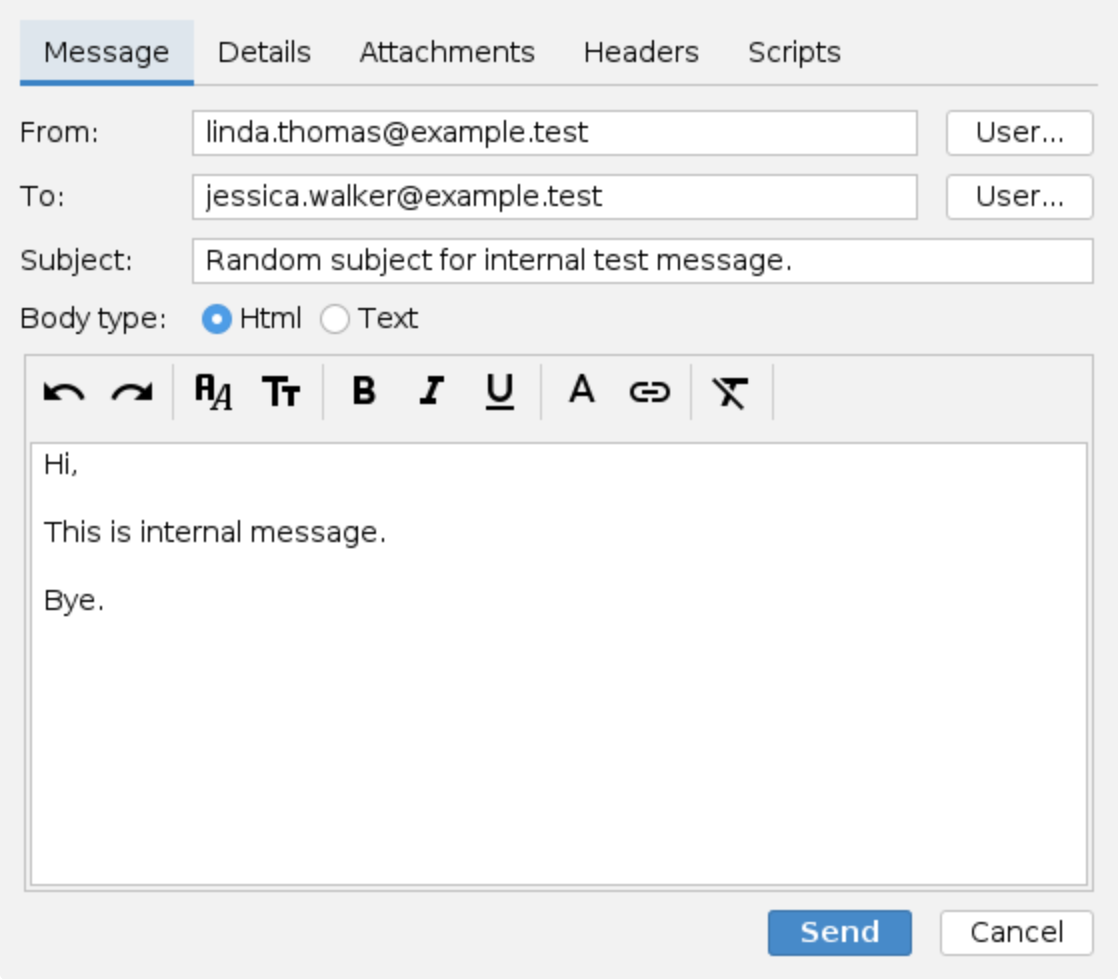
- From - the sender's address. Use the User... button to pick from existing users.
- To - the recipients, several separated by commas or semicolons, as
name@domainorName <name@domain>. User... picks from existing users. - Subject - the message subject.
- Body type - Html opens the Html designer with basic formatting, Text a plain text
area. A Text message is sent as plain text only, a single
text/plainbody ormultipart/mixedwith the attachments, so rules for plain text mail can be tried. An Html message is sent with a text alternative.
Details
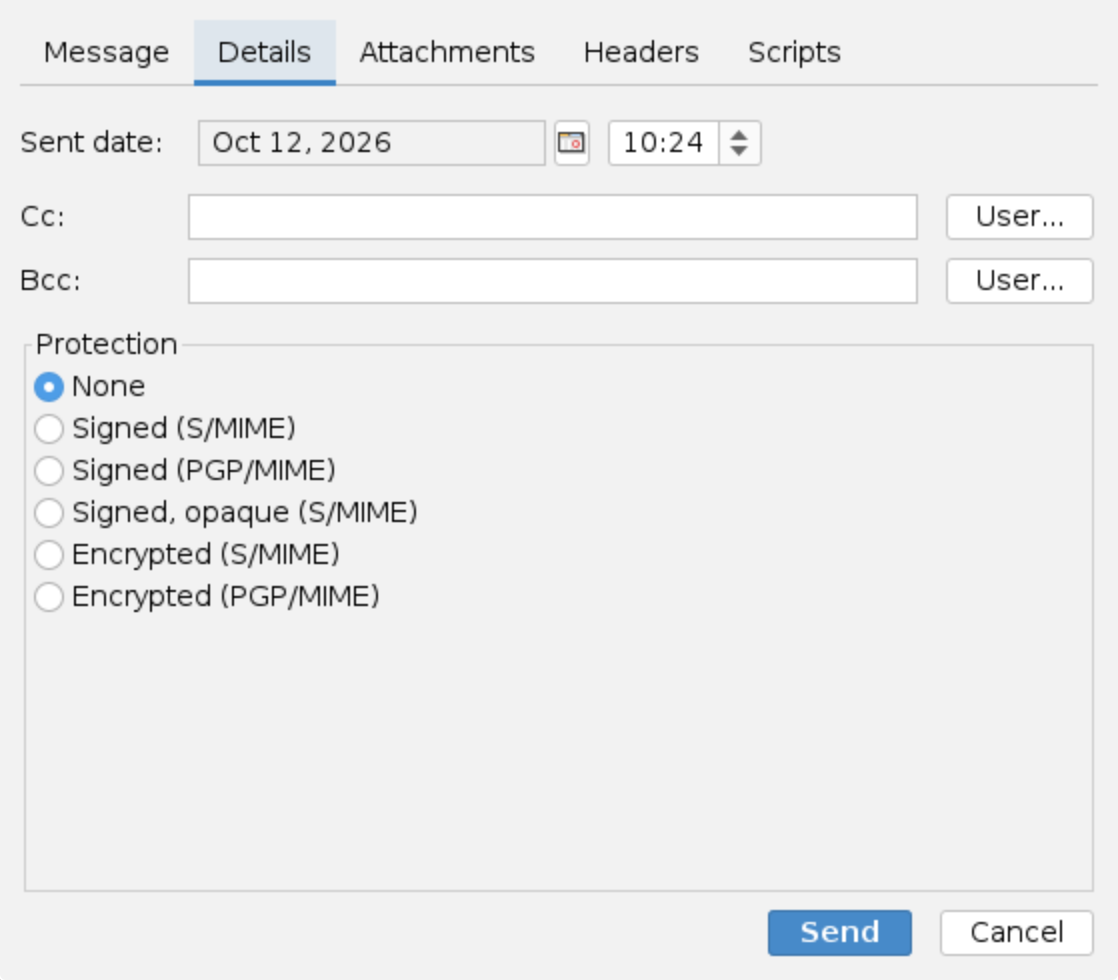
- Sent date - the date and time the message is considered to be sent, for the schedulers of the rules and the date variables of the templates.
- Cc and Bcc - further recipients, as on the Message tab.
- Protection - sends the message as signed or encrypted, see Signed and encrypted test messages.
Attachments
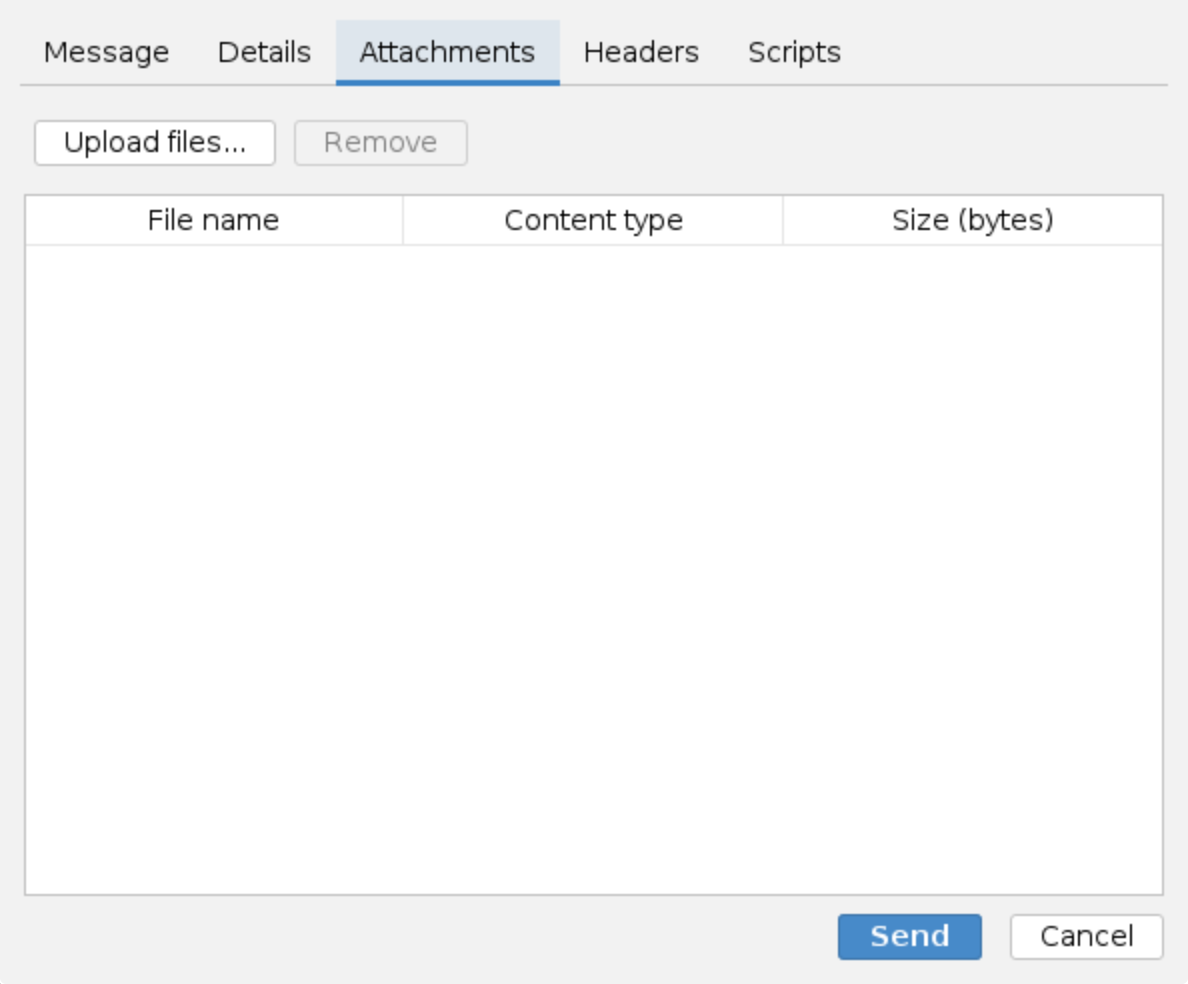
Upload files... attaches files from your computer, to try the attachment conditions and actions: a password protected archive for Attachment encrypted, a ZIP with an executable inside for Archive content, or a large file for Attachment size. The table shows the file name, the content type and the size of each attachment.
Headers
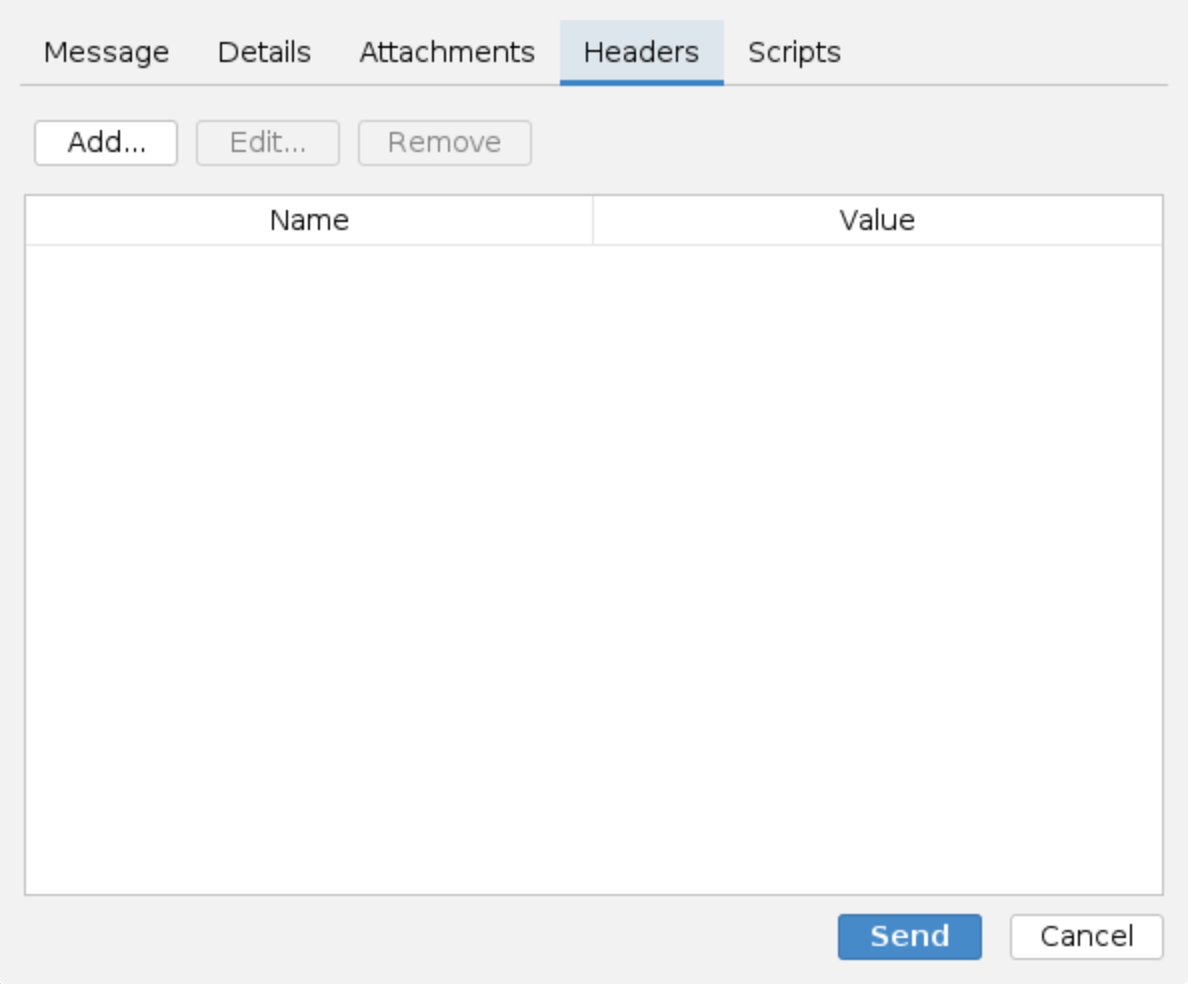
Add... adds a header with a name, for example X-Mailer, and a value, to try the
Message header condition and the header actions.
Edit... and Remove change the selected header.
Scripts
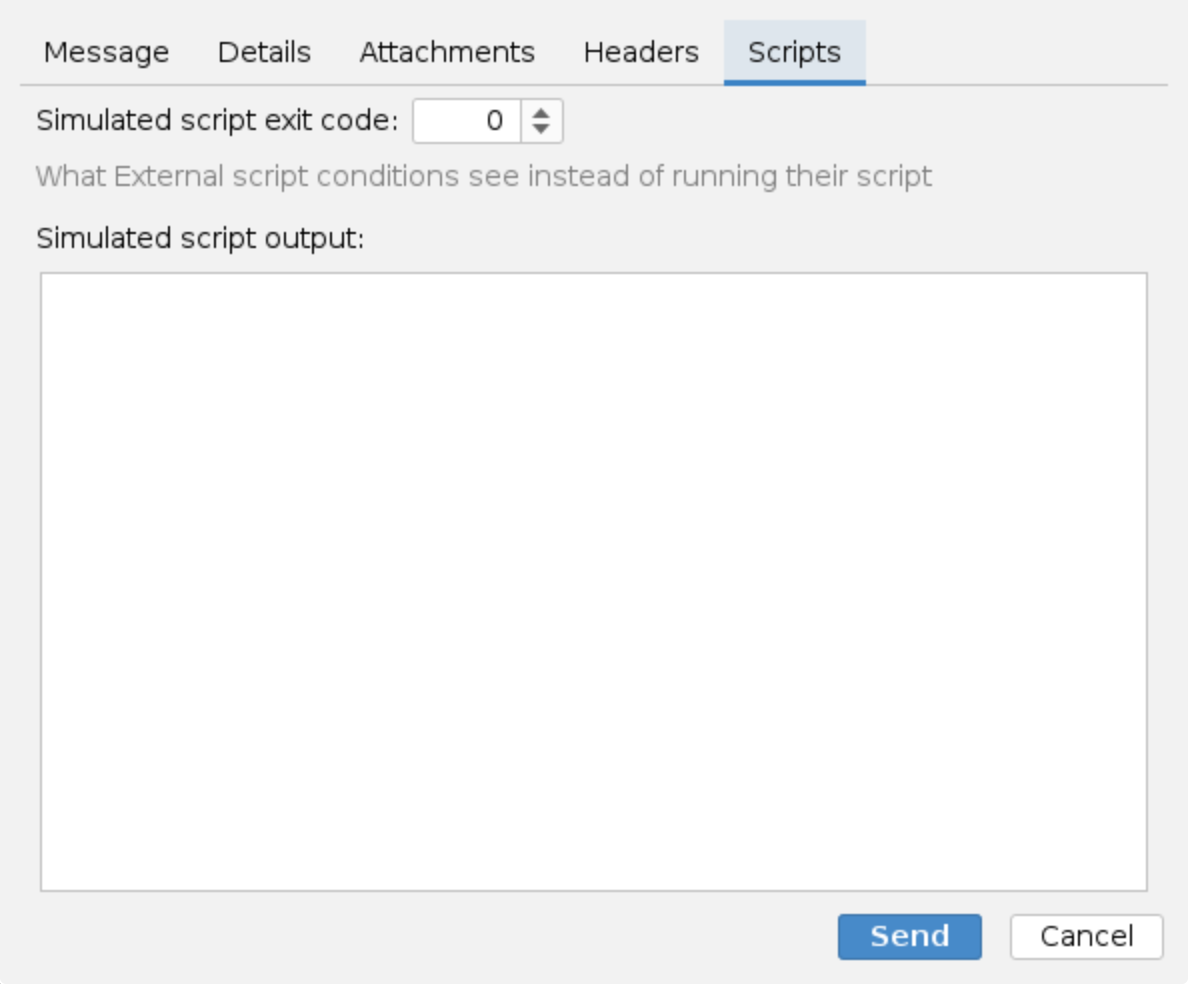
The Rules Tester runs on your own computer, not on the milter server, so External script conditions never run their script here. They see the Simulated script exit code and the Simulated script output set on this tab instead, so a rule that matches on the exit code or the output can be tried with either result.
Test messages
A sent message appears in the Test Messages list, and the panel of the selected message shows what the rules did to it:
- Message - the status, for example
acceptorreject, the sender, the recipients, the subject and a preview of the body. The Html and Text views show only the formats the message has, so a text-only message opens on its text. - Details - the date, Cc and Bcc.
- Attachments and Headers - the attachments and the headers after the actions ran.
- Trace - the processing trace: every rule, which exceptions and conditions were evaluated, and which actions were applied, as in the Events history.
Actions offers Delete and Delete All for the list.
Signed and encrypted test messages
Protection on the Details tab sends the test message as a signed or an encrypted message:
- None - an ordinary message, the default.
- Signed (S/MIME) and Signed (PGP/MIME) - a detached signature next to the message. The body and the attachments stay readable, so the rules see them, and they can still be edited.
- Signed, opaque (S/MIME) - the message is wrapped inside the signature.
- Encrypted (S/MIME) and Encrypted (PGP/MIME) - the message is wrapped inside the ciphertext.
The test message gets the MIME structure of such mail, with placeholder bytes in place of a real signature or ciphertext. The rules look at the structure alone, and the Rules Tester never delivers a message, so no keys or certificates are needed. This lets you try, without a signing or encrypting mail client:
- the Message type condition with Signed or Encrypted,
- the actions that leave protected mail alone and say so in the trace: signatures, disclaimers, the attachment actions (Add, Remove, Compress and Strip) and Change message format.
For an opaque signature or an encrypted message the body and the attachments cannot be edited: the Html and Text choice of the body and the Attachments tab are disabled, and the dialog says why. They would be inside the signature or the ciphertext, where rules cannot see them either.
While rules processing is suspended
The Rules Tester follows the switches of the Rules processing page, as
the milter does, including changes not saved yet: while processing is switched off, a test
message passes through unchanged and its trace says Rules processing is suspended, with the
reason if one was given; while a rule type is switched off, its section of the trace says
Rules processing suspended - skipping. and the other rule types run.
Html preview
The Html view of a test message is a preview drawn by the Rules Tester, not by a mail client, and a line above it says so. Mail clients render Html differently: Outlook on the desktop uses the Word engine, webmail clients rewrite and wrap the body and may drop styles, phone apps rescale the message, dark mode changes colours and remote images stay blocked until the recipient allows them. A signature or disclaimer that looks broken, or perfect, in the preview can therefore look different in the mailbox. The preview of the administration application understands only simple Html, so it differs from mail clients more than a browser does. To check the final look, send a real message through the server to a Zimbra, Outlook and Gmail mailbox, and open it on a phone as well. The Text view shows the plain text exactly as it is sent.