Administrator panel
Before proceeding with the installation, ensure that Java is properly installed and configured on your system. For instructions, refer to our Java installation guide.
The Administrator Panel is a desktop application used to configure and manage the MSH Postfix Milter server. This guide covers downloading and launching the application on Windows, Linux, and macOS.
Download
Navigate to the Download page on this site and click the Download for Desktop button. You will receive a file named msh-pm-admin-VERSION.zip.
The archive contains the following files:
| File | Description |
|---|---|
msh-pm-admin.exe | Windows executable - recommended launcher for Windows |
msh-pm-admin.bat | Windows batch file - locates Java automatically and launches the application |
msh-pm-admin-simple.bat | Windows batch file - uses java directly from PATH without auto-detection |
msh-pm-admin.jar | Java application archive (platform-independent) |
msh-pm-admin.sh | Shell script for Linux and macOS - locates Java automatically and launches the application |
Windows
Installation
- Extract the downloaded
msh-pm-admin-VERSION.ziparchive to a directory of your choice. - Open the extracted folder.
Launching
Double-click msh-pm-admin.exe to start the application.
If the .exe does not launch correctly, try one of the batch file alternatives:
msh-pm-admin.bat- attempts to locate Java automatically before launching.msh-pm-admin-simple.bat- usesjavadirectly from the systemPATH.
Running from a batch file opens a console window alongside the application. A successful startup produces output similar to:
17:13:45.807 [main] INFO  msh.pm.admin.AdminEntry - -------------------------------------------------------
17:13:45.822 [main] INFO  msh.pm.admin.AdminEntry -    MSH Postfix Milter (admin)
17:13:45.829 [main] INFO  msh.pm.admin.AdminEntry -    Version 1.0.0
17:13:45.845 [main] INFO  msh.pm.admin.AdminEntry - -------------------------------------------------------
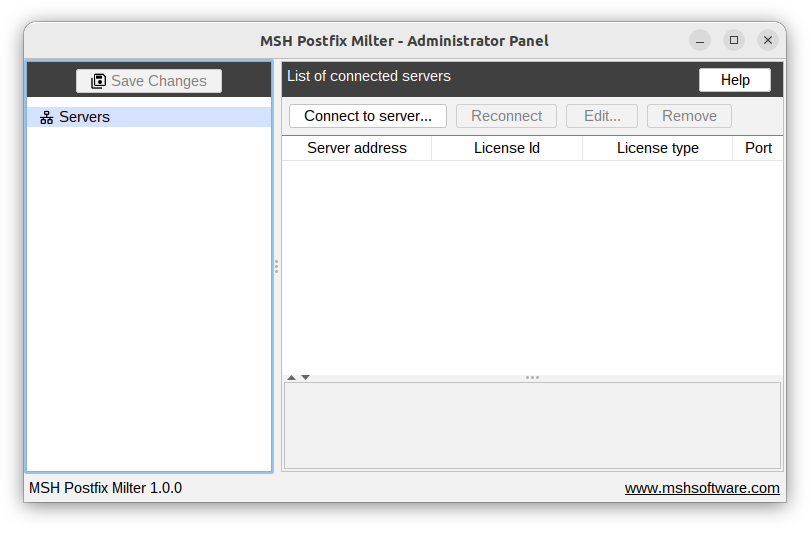
After launching, the Administrator Panel window will appear.
Linux
Installation
Extract the downloaded archive:
unzip msh-pm-admin-VERSION.zip
Launching
Make the shell script executable (first run only) and start the application:
chmod +x msh-pm-admin/msh-pm-admin.sh
./msh-pm-admin/msh-pm-admin.sh
A successful startup produces output similar to:
17:13:45.807 [main] INFO  msh.pm.admin.AdminEntry - -------------------------------------------------------
17:13:45.822 [main] INFO  msh.pm.admin.AdminEntry -    MSH Postfix Milter (admin)
17:13:45.829 [main] INFO  msh.pm.admin.AdminEntry -    Version 1.0.0
17:13:45.845 [main] INFO  msh.pm.admin.AdminEntry - -------------------------------------------------------
After launching, the Administrator Panel window will appear.
macOS
Installation
Extract the downloaded archive:
unzip msh-pm-admin-VERSION.zip
Launching
Make the shell script executable (first run only) and start the application:
chmod +x msh-pm-admin/msh-pm-admin.sh
./msh-pm-admin/msh-pm-admin.sh
On macOS, Gatekeeper may block the application on first launch. If you see a security warning, open System Settings → Privacy & Security and click Open Anyway next to the blocked item.
A successful startup produces output similar to:
17:13:45.807 [main] INFO  msh.pm.admin.AdminEntry - -------------------------------------------------------
17:13:45.822 [main] INFO  msh.pm.admin.AdminEntry -    MSH Postfix Milter (admin)
17:13:45.829 [main] INFO  msh.pm.admin.AdminEntry -    Version 1.0.0
17:13:45.845 [main] INFO  msh.pm.admin.AdminEntry - -------------------------------------------------------
After launching, the Administrator Panel window will appear.
Additional resources
Troubleshooting
If you encounter issues during installation or launch, refer to:
- Java troubleshooting - solutions for common Java-related issues
What's next
After successfully launching the Administrator Panel, you might want to:
- Install server module - install the server module component
- Connect to mail server - once the server module is installed, configure the connection to your mail server